Edge vs. The Rest: Why it's Time to Switch
With everything happening online, your browser is like your personal guide. With new features, Edge made it much more easier and efficient.
Password Generator
The Password Generator in Microsoft Edge is a built-in tool that helps create strong and unique passwords for your online accounts.
How it works:
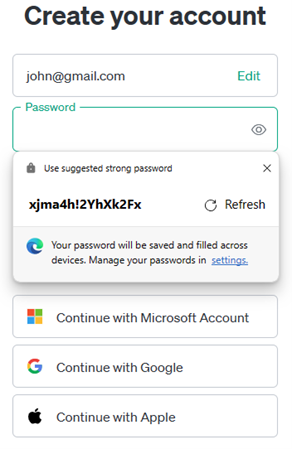
- Automatic Suggestion: When you encounter a "new password" field on a website (like when signing up for an account), Edge will often automatically suggest a strong password. You'll see a drop-down option appear within the password field.
Split Screen
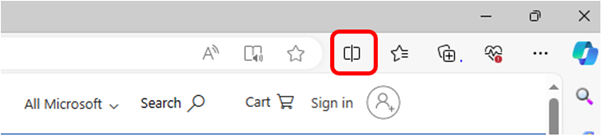
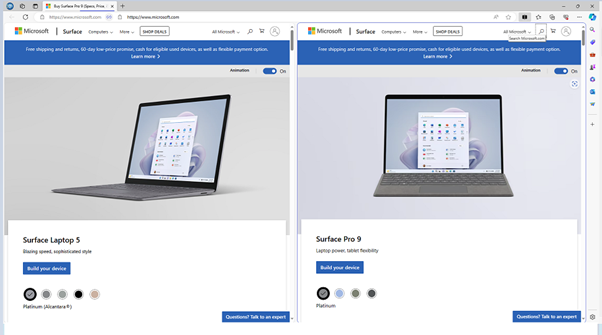
This feature allows you to view two websites side-by-side within a single browser tab. It's great for multitasking and making comparisons. You can use it to compare, switch, or drag and drop links between the left and right screens.
You can also adjust the size of the screens with a slider.
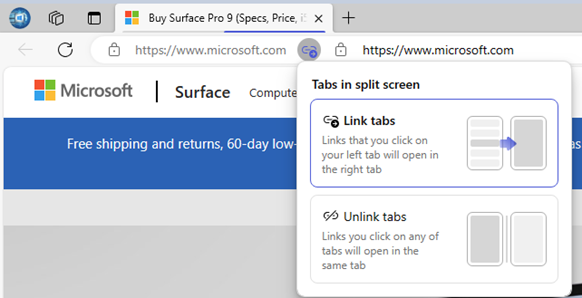
What is even more interesting under this feature is that you can link and unlink tabs. Microsoft Edge has a handy feature for organizing and controlling how links open when you have split screens active.
What is Linking Tabs?
When you have a split screen in Edge, linked tabs mode means that any links you click on in one side of the split screen will automatically open in the other side.
Example: If you're comparing products on two websites, one in each half of your split view, clicking a product link on the left side will automatically load that product's page on the right side.
Unlinking Tabs
This reverses the behaviour. Now, links you click will open in new tabs or windows, instead of automatically replacing the content in the other half of your split screen.
Vertical Tabs
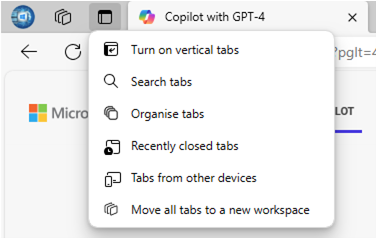
If you tend to have lots of tabs open simultaneously, vertical tabs present a cleaner, more organized way to view and manage them. They line up along the side of your browser window.
Collections
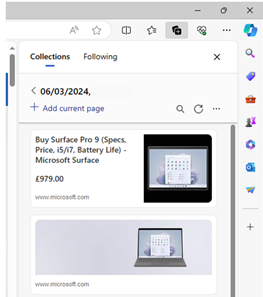
This feature allows you to easily save sets of web pages, images, and notes for later reference. Perfect for research projects, trip planning, or shopping comparisons. Collections are available on your other devices signed in with the same Microsoft account.
Read Aloud
Edge can narrate articles and web pages out loud, providing a hands-free way to consume content or offering accessibility assistance. It can be activated by pressing the right mouse click on the side and selecting “Read aloud” from offered options.
Immersive Reader
This mode makes Edge web pages cleaner by cutting out distractions and provides handy tools for a smoother reading experience. You’ll find options for adjusting text, a read-aloud feature, grammar tools, and translation support to help you enjoy reading more and make it easier for everyone.