Wi-Fi password is correct - The authentication behind it
Your work laptop refuses to connect to corporate Wi-Fi, even though you are entering the correct credentials. Restarting the laptop doesn't help, and changing the password may not solve the problem.
In a corporate environment, Wi-Fi access can depend on 802.1X, EAP, certificates, a RADIUS server and network policies. This small lab demonstrates how these components work together.
What We Need
- A Windows Server with Active Directory Domain Services (AD DS), DNS and Network Policy Server (NPS).
- A trusted server certificate for PEAP. In a lab, this can be issued by AD CS or another trusted certificate authority.
- A Wi-Fi access point or controller that supports WPA2-Enterprise/802.1X and RADIUS.
- A Windows 11 client and a test user account.
Keep the components on a network where the access point can reach NPS. Allow UDP 1812 for RADIUS authentication; UDP 1813 is commonly used for accounting if you enable it.
1. Install NPS and Register It in Active Directory
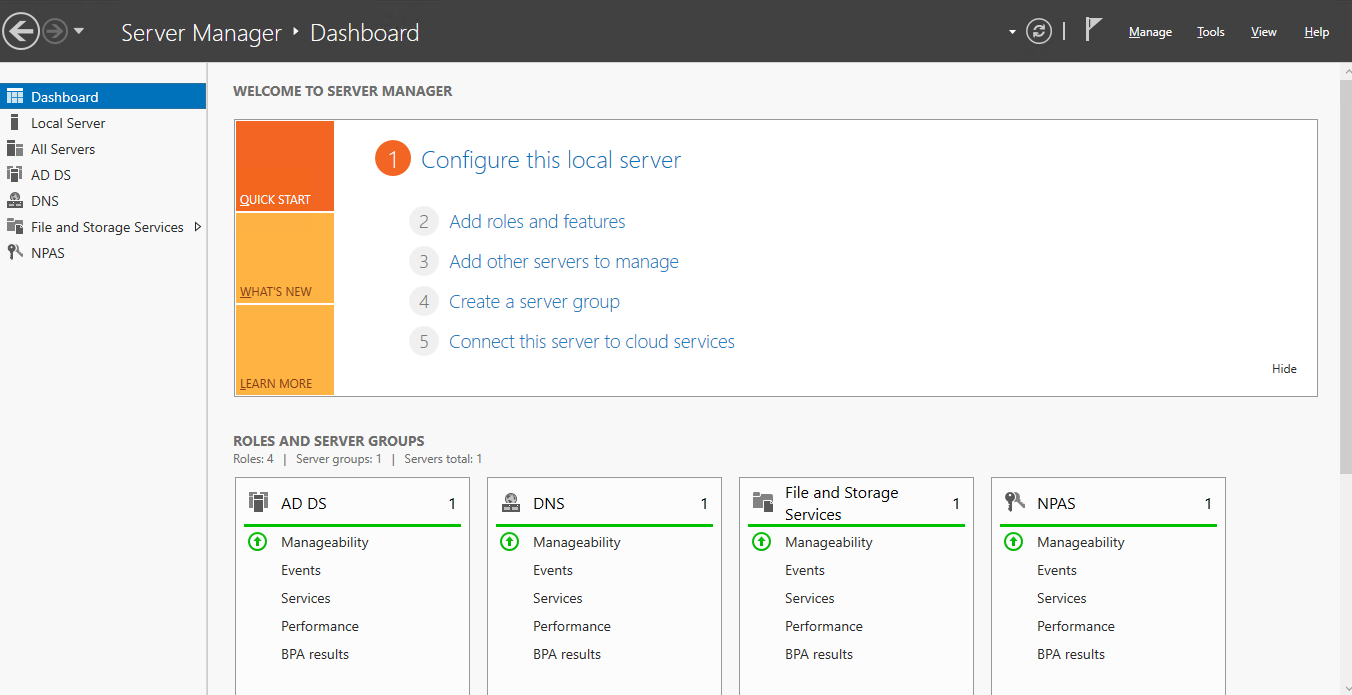
In Server Manager, use Add Roles and Features to install Network Policy and Access Services, including the Network Policy Server role. After installation, open the NPS console, right-click NPS (Local), and select Register server in Active Directory. Use an account with the required permissions.
2. Add the Access Point as a RADIUS Client
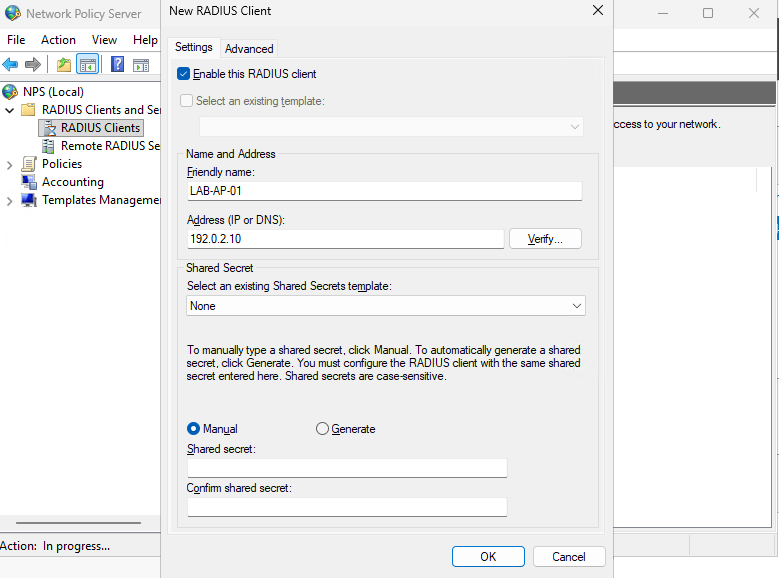
In the NPS console, go to RADIUS Clients and Servers > RADIUS Clients and add the access point or wireless controller. Enter a friendly name, its IP address as seen by NPS, and a strong shared secret. Configure the same secret on the access point.
The RADIUS client is the network device forwarding authentication requests—not the Windows laptop. If a controller or gateway sends the requests, register the source address that NPS actually sees.
3. Create the Wi-Fi Network Policy
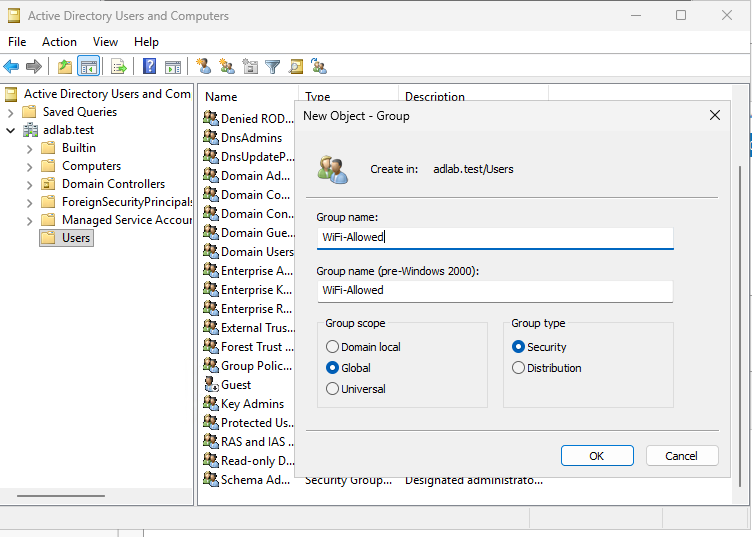
Under Policies > Network Policies, create a policy such as WiFi-Allowed. Add a condition requiring membership in an Active Directory security group with that name. For a wireless policy, set the NAS Port Type condition to Wireless - IEEE 802.11 where appropriate.
For this example, select PEAP and configure EAP-MSCHAPv2 as the inner authentication method. Ensure the NPS server has a valid certificate, and make sure the Windows client trusts the issuing certificate authority. Place the policy in the correct processing order and check that no other policy unintentionally grants access to users outside the group.
4. Configure the Wireless Network
On the access point or controller, create an SSID such as Corp-WiFi and select WPA2-Enterprise (or a supported enterprise mode). Enter the NPS server's IP address, UDP port 1812 and the same RADIUS shared secret configured in Step 2.
On the Windows 11 client, configure the wireless profile to use PEAP with EAP-MSCHAPv2. Keep server-certificate validation enabled and trust the correct root CA. The example IP addresses and product interface shown are illustrative; use values and menus that match your own equipment.
5. Test Access and Check the Logs
Connect the Windows 11 client using a test account that belongs to the WiFi-Allowed group. If the settings are correct, the client should connect. Then test with an account that is not in the allowed group, ensuring no other network policy grants that account access.
On the NPS server, review the Network Policy and Access Services events in Event Viewer. Event ID 6272 indicates that NPS granted access; Event ID 6273 indicates that NPS denied access. If accounting is enabled, you can also review the configured accounting logs.
Summary
EAP defines the authentication method, PKI and certificates establish trust when required, and NPS evaluates the request against network policies. The access point then enforces the decision. NPS provides RADIUS authentication and policy-based authorization; a full NAC deployment may include additional device-compliance and enforcement capabilities.
A correct password is only one part of the process. The authentication method, certificate trust and network policy must all work together.