How to Set Up an Account Lockout Policy in Active Directory
If you saw someone trying key after key on your front door, you wouldn’t just stand and watch. You’d step in, secure the door, or change the lock.
A similar thing can happen in a company’s network: automated tools may try passwords against many employee accounts. Without an Account Lockout Policy, Active Directory won’t automatically lock an account after a set number of failed sign-in attempts.
Setting a sensible lockout threshold adds a layer of protection by making repeated password guessing harder. It is not a magic shield against every attack, but it helps put a clear limit on failed sign-ins.
In this tutorial, main settings are explained that'll show how to configure the Account Lockout Policy in Active Directory using Group Policy.
What is an Account Lockout Policy in Active Directory?
Think of the Account Lockout Policy as a rule that tells Active Directory when to lock a user account after too many failed sign-in attempts. The lockout threshold sets how many failed attempts can happen before the account is locked.
The policy can help reduce the risk of password related attacks such as credential stuffing, dictionary attacks, password spraying, etc. When the configured threshold is reached, Active Directory locks the account, stopping further sign-in attempts through that account for the configured duration. If the Account lockout duration is set to 0, an administrator must unlock it manually.
An unexpected lockout can also be an early warning sign. If a user who normally signs in without issues suddenly finds their account locked, it is recommended to check what caused this outcome.
Four main settings control how the policy works. They define how many failed attempts trigger a lock, how long the account stays locked, when the failed-attempt counter resets, and whether the built-in Administrator account is covered. Choosing the values carefully helps protect accounts without locking people out unnecessarily.
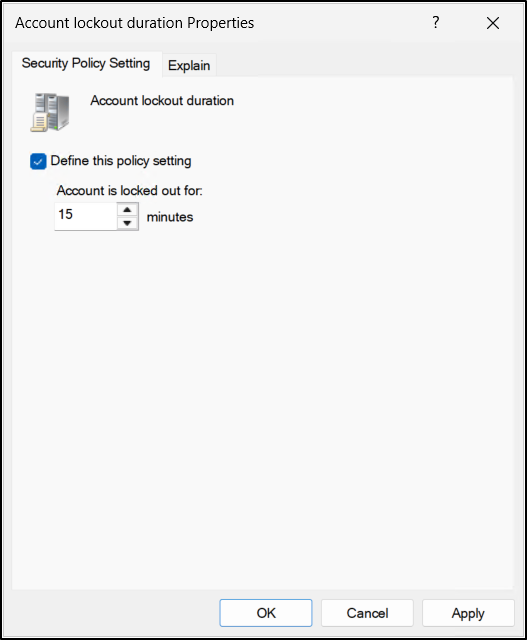
Account Lockout Duration
Account lockout duration tells Active Directory how long an account stays locked after it reaches the lockout threshold. The time is measured in minutes and can be set from 0 to 99,999 minutes.
If the value is greater than 0, the account unlocks automatically when the time is up. If the value is set to 0, the account stays locked until an administrator unlocks it manually.
This setting works together with Account lockout threshold. The threshold must be configured first, and the lockout duration must be at least as long as the value for Reset account lockout counter after. This keeps the settings working together as intended.
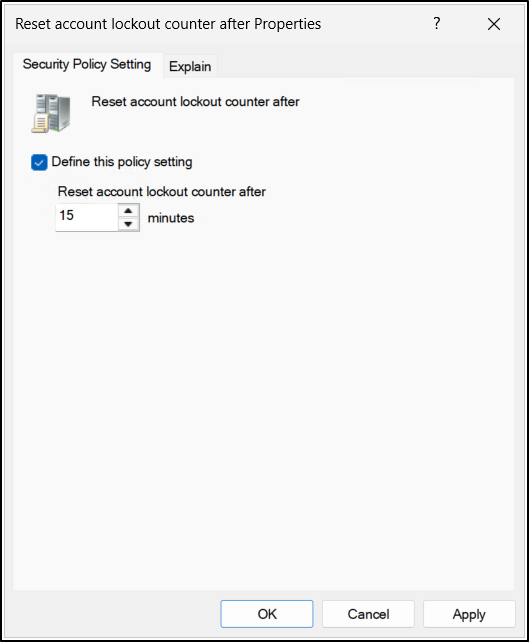
Reset Account Lockout Counter After
Reset account lockout counter after tells Active Directory how long to wait before clearing the count of failed sign-in attempts. The timer starts after a failed sign-in. When the specified time passes, the counter returns to zero. This value can be set from 1 to 99,999 minutes.
When a lockout threshold is configured, the reset-counter value must be less than or equal to the Account lockout duration. Keep the two values in line with each other so an account does not stay locked longer than you intend.
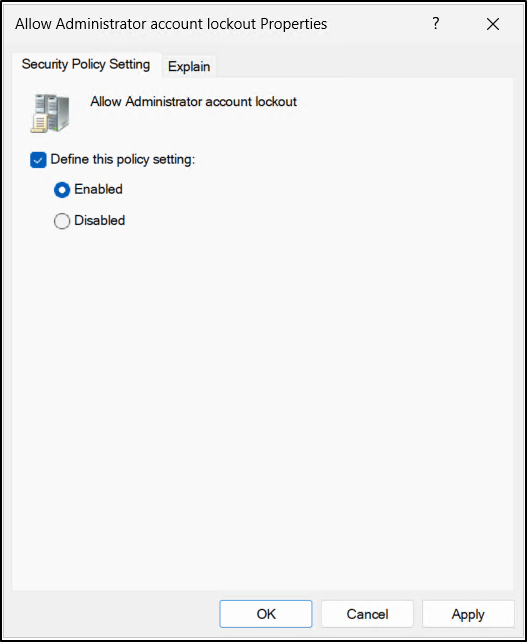
Allow Administrator Account Lockout
The Allow Administrator account lockout setting controls whether the built-in local Administrator account is subject to the configured account lockout rules, including the lockout threshold, duration, and failed-attempt counter reset.
If the built-in local Administrator account is disabled, this setting has little practical effect as long as the account is disabled. On the other hand, if the account is enabled and used, lockout protection adds additional layer of security against repeated password-guessing attempts. This applies specifically to the built-in local Administrator account, not to domain administrator accounts or every member of the Administrators group.
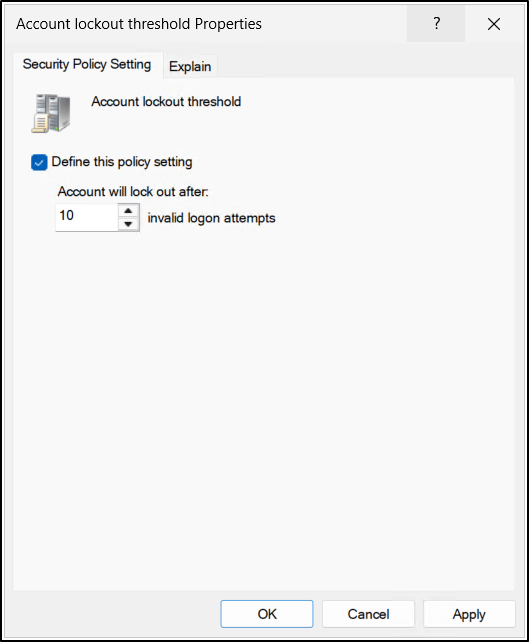
These settings depend on one another, so changing one value can affect the others. The table below gives a simple summary of the main relationships.
| Policy Setting | What needs to be true |
|---|---|
| Account lockout threshold | Set this to a value greater than 0 to turn on account lockout. The other lockout settings depend on this one. |
| Account lockout duration | The threshold must be configured first. The lockout duration must be equal to or longer than the reset-counter period. |
| Reset account lockout counter after | This setting applies only when a threshold is configured. Its value must be equal to or shorter than the lockout duration. |
Prerequisites: What is needed before the start
Before configuring the Account Lockout Policy, following must be met:
- Permission to manage Group Policy Objects (GPOs). In many domains, members of the Domain Admins or Enterprise Admins groups already have the required permissions.
- Access to a domain controller or to a member server/workstation that has the Group Policy management tools installed.
- On a workstation, the RSAT package with the Group Policy Management feature included to be installed.
- On a member server, the Group Policy Management tools can be added through Server Manager.
Set Account Lockout Policy Using Group Policy Management Console
The domain’s Account Lockout Policy can be set or changed through a Group Policy Object (GPO). The following steps show where to find the setting and how to configure its values.
- Open Server Manager, select Tools → Group Policy Management, and expand the forest node.
- Select your domain, then expand it to see the linked Group Policy Objects (GPOs).
- Right-click Default Domain Policy and choose Edit to open the Group Policy Management Editor.
- In the editor, go to Computer Configuration → Policies → Windows Settings → Security Settings → Account Policies → Account Lockout Policy.
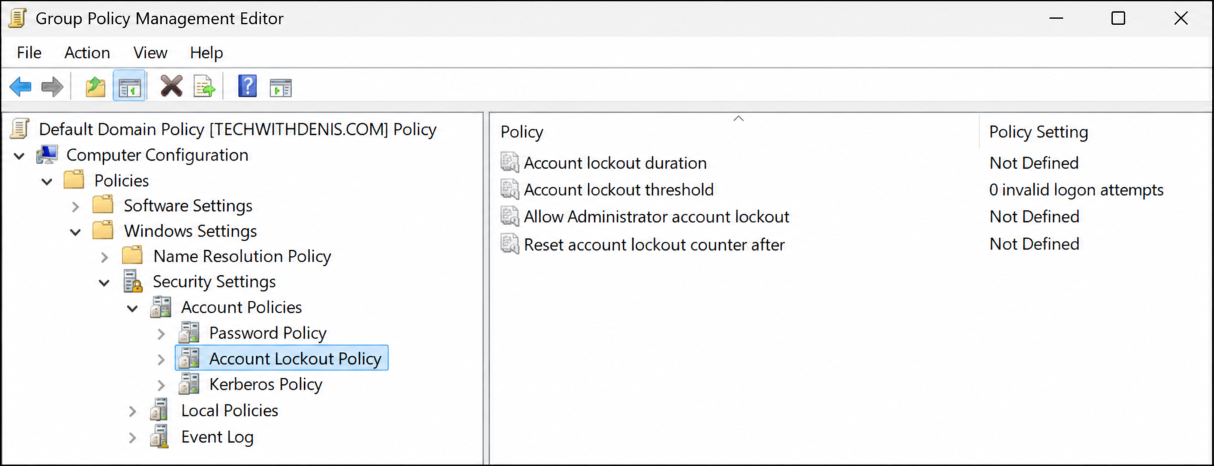
- Double-click Account lockout threshold. Select Define this policy setting, enter the number of failed sign-in attempts you want to allow, and click Apply.
- After you click Apply, Windows may suggest values for the other lockout settings, such as lockout duration, the counter reset period, and Administrator account lockout.
- Click OK to accept the suggested values, then click OK again to close the settings window.
- You can return to the other settings later and adjust the suggested values to match your organization’s needs.
Modify Account Lockout Policy Using PowerShell
When the lockout threshold is changed in Group Policy Editor, Windows may suggest values for the related settings. These values should also be reviewed and adjusted as needed.
PowerShell provides a more direct way to view and update each setting individually.
First, the current Account Lockout Policy settings need to be checked. Replace <YourDomain> with your domain’s full DNS name (FQDN), then run this command:
Get-ADDefaultDomainPasswordPolicy-Identity"<YourDomain>"|Select-Object LockoutObservationWindow, LockoutDuration, LockoutThreshold |flTo set the lockout threshold, lockout duration, and reset-counter period for the default domain password policy, use the following command:
Set-ADDefaultDomainPasswordPolicy-Identity"<YourDomain>"-LockoutThreshold<ThresholdValue>-LockoutDuration (New-TimeSpan-Minutes<Duration>) -LockoutObservationWindow (New-TimeSpan-Minutes<ObservationWindowDuration>)Replace <YourDomain> with your domain name, <ThresholdValue> with the number of failed sign-in attempts allowed, and <Duration> with the lockout time in minutes. Replace <ObservationWindowDuration> with the number of minutes before the failed-attempt counter resets.
Fine-Grained Password Policies for Account Lockout
The standard domain password and account lockout policy is set at the domain level, so it usually gives users in that domain the same rules. This is easy to manage, but some accounts, such as privileged or service accounts might need different settings.
Fine-Grained Password Policies (FGPPs) allow different password and account lockout rules to be applied to selected users or groups. For example, stricter settings can be assigned to higher-risk accounts, while practical settings are maintained for other users.
Unlike a domain-wide policy, an FGPP can apply to selected users or groups. This gives more precise control over which account lockout settings those accounts receive.
Fine-Grained Password Policies can be configured through Active Directory Administrative Center (ADAC) or PowerShell.
- Configure an FGPP for Account Lockout in Active Directory Administrative Center (ADAC)
- Configure an FGPP for Account Lockout with PowerShell
Set Account Lockout in an FGPP Using Active Directory Administrative Center
A Fine-Grained Password Policy can be configured in Active Directory Administrative Center (ADAC) by creating a Password Settings Object (PSO) in the Password Settings Container.
Follow these steps to set a policy for specific users or groups:
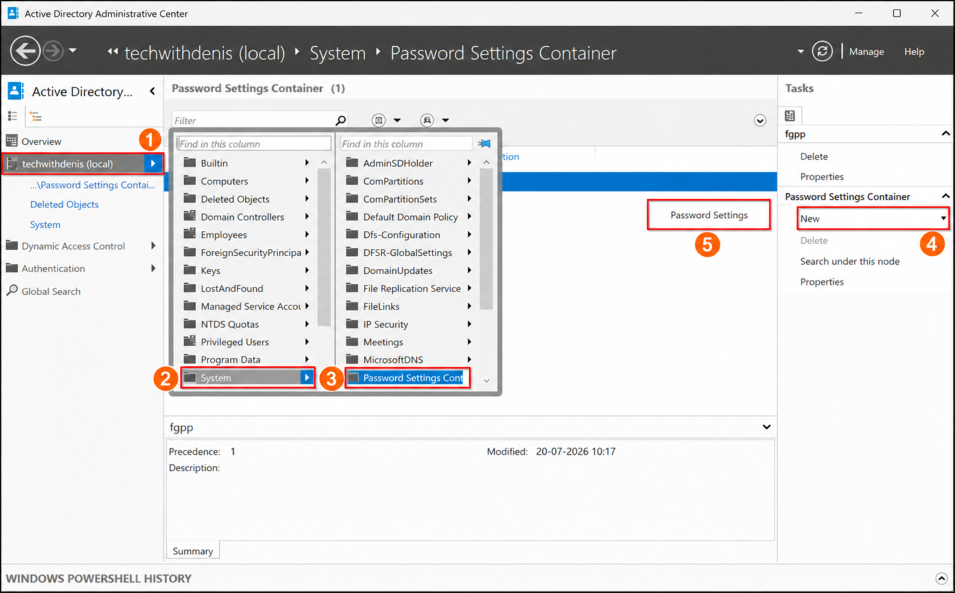
- Open Active Directory Administrative Center (ADAC), select your domain, and go to System → Password Settings Container.
- From the top-right menu, select New → Password Settings. Enter a name for the policy and set its precedence.
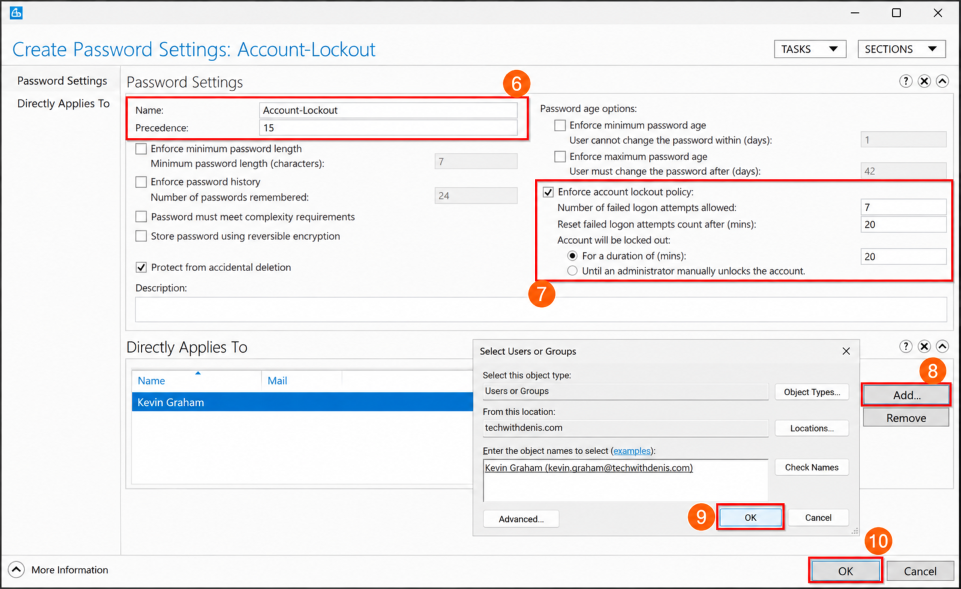
- Under Password Settings, select Enforce account lockout policy..
- Set the account lockout values, including the threshold, lockout duration, and counter reset time.
- In Directly Applies To, select Add, then choose the users or security groups that should receive the policy.
- Click OK to save the policy.
How to Find Locked Out Accounts in Active Directory
When an Active Directory account is locked, the event is recorded in the Security log on the primary domain controller (PDC) as Event ID 4740.
Before looking for these events, make sure the relevant audit policies, such as Account Lockout and Logon/Logoff are enabled in the Default Domain Controllers Policy. Then follow the steps below.
- In Server Manager, select Tools → Event Viewer. In the left pane, go to Windows Logs → Security.
- In the Actions pane on the right, select Filter Current Log. Enter 4740 in the Event ID field and click OK.
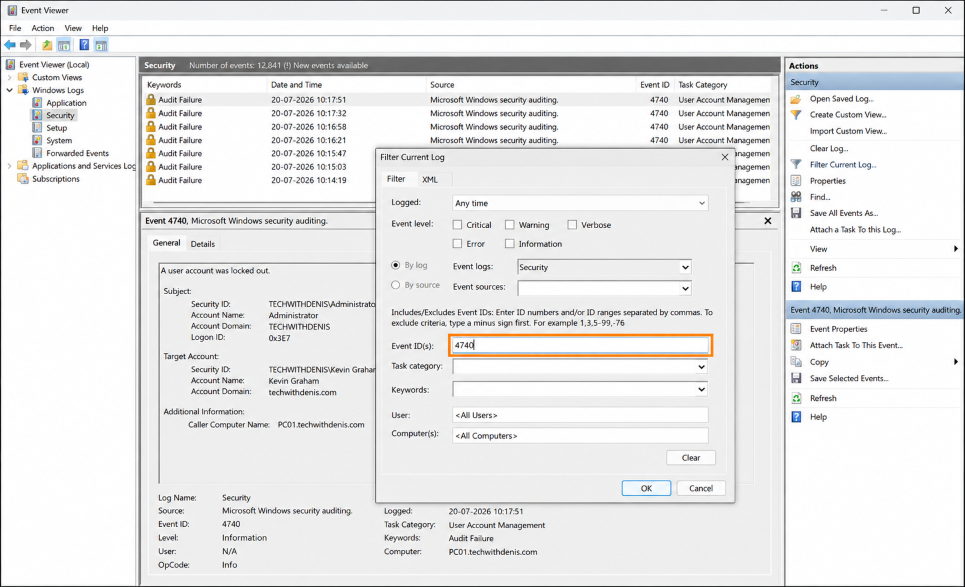
The results will show account-lockout events. Open an event to see details such as the username and caller computer name. Use those details to investigate which computer may be causing the lockout.
You can also find locked accounts with PowerShell instead of clicking through several menus. Run this command:
Search-ADAccount-UsersOnly-LockedOut|Select-Object Name, SamAccountName, DistinguishedNameThis command lists locked user accounts in the PowerShell window. To save the list as a CSV file, run the command below.
Search-ADAccount-UsersOnly-LockedOut|Select-Object Name, SamAccountName, DistinguishedName |Export-Csv"C:\Accounts\LockedAccounts.csv"-NoTypeInformation-Encoding UTF8Make sure the C:\Accounts folder already exists. If it does not, the export command will fail.
If you need reports for auditing, you can add a timestamp to the file name so each run creates a separate report. The full script is shown below:
# Generate timestamp for the report filename$Timestamp = Get-Date-Format"yyyy-MM-dd_HH-mm"# Define the report path$ReportPath = "C:\Accounts\LockedAccounts_$Timestamp.csv"# Search for locked-out AD user accounts and export the resultsSearch-ADAccount-UsersOnly-LockedOut|Select-Object Name, SamAccountName, DistinguishedName |Export-Csv$ReportPath-NoTypeInformation-Encoding UTF8

# Display the report locationWrite-Host"Report saved to: $ReportPath"
One thing to check: the script saves its report in C:\Accounts, so make sure that folder exists before running it. If you run the script twice within the same minute, the file name will be the same and the second export may overwrite the first.
Unlock Locked Out Accounts in Active Directory
You can unlock a user account in Active Directory Users and Computers (ADUC) or with PowerShell.
- On the domain controller, open Server Manager → Tools → Active Directory Users and Computers.
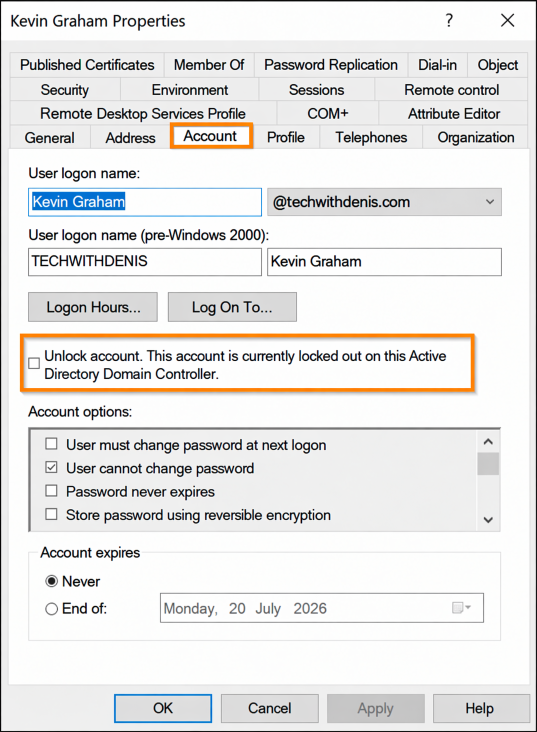
- Find the locked account, right-click it, and select Properties → Account.
- Select the checkbox labeled “Unlock account. This account is currently locked out on this Active Directory Domain Controller.”
To unlock one user with PowerShell, replace <Username> in the command below with that user’s account name or another supported identity value.
Unlock-ADAccount-Identity"<Username>"If you need to unlock every account that is currently locked, use the command below. Use it carefully: it unlocks all accounts returned as locked out.
Search-ADAccount-LockedOut|Unlock-ADAccountUse these practices to protect accounts while avoiding unnecessary disruption for users:
Choose an Appropriate Account Lockout Threshold
- Avoid setting the threshold so low that employees are locked out after only a few mistakes.
- Microsoft suggests 10 failed sign-in attempts as a possible starting point. Choose a value that fits your organization’s risk and support needs.
If you would rather not change the Default Domain Policy, create a separate GPO, link it at the domain level, and configure the Account Lockout Policy there.
If your environment uses both on-premises Active Directory and Microsoft Entra ID, align the AD DS lockout settings with Microsoft Entra ID Smart Lockout. For example, set the AD DS threshold higher than the Entra ID threshold, such as 10-15 attempts in AD DS if Entra ID is set to 5 and set Entra ID’s lockout duration longer than the on-premises AD DS duration. This helps reduce the chance that repeated attempts reach on-premises Active Directory.